7 Password Sharing Mistakes Teams Make
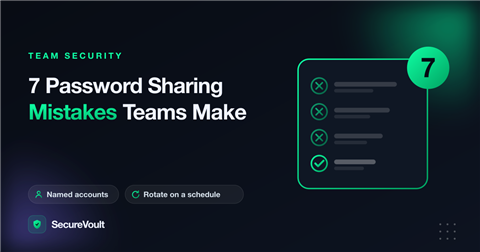
Teams share credentials all the time: for a shared tool, a client account, a staging server. Most incidents do not come from clever attacks. They come from everyday habits. These password sharing mistakes are the seven to look for.
1. Posting credentials in chat or tickets
Channels and tickets are visible to many people and kept for years. The fix is to share a one-time link instead, so the credential disappears after it is used.
2. One shared account for everyone
When five people use one login, you cannot tell who did what, and you cannot remove one person without changing the password for all. Where the tool allows it, create a named account for each person.
3. Never rotating shared credentials
A password that has been shared for three years has probably been seen by people who have left. Rotate shared credentials on a schedule, and every time someone with access leaves the team.
4. Reusing passwords
If one breached site uses the same password as your admin tool, an attacker only needs the first. Use a unique password for every account, and let a password manager remember them.
5. Sending the password and the unlock code together
If a link and its passphrase travel in the same message, a stolen message gives the attacker both. Send them by different channels, for example the link by email and the passphrase by phone.
6. Giving more access than the job needs
Admin access for someone who only needs to read a dashboard turns a small mistake into a big one. Give the lowest level of access that lets the person do their work, and set an end date.
7. No multi-factor authentication
A leaked password is much less useful when a second factor is required. Turn on multi-factor authentication on every account that supports it, especially the shared ones.
A simple team rule
Write one sentence your team can remember: “Credentials never go in chat, email or tickets. We use one-time links, and we rotate after use.” Short rules get followed.
How to audit your team in an afternoon
- List the shared accounts your team uses: tools, vendor portals, social media, infrastructure.
- For each one, write down who has the password and when it was last changed.
- Mark any that are shared in a chat channel, a document or a ticket.
- Rotate the riskiest ones first: anything with admin access, billing or customer data.
- Decide how each credential will be shared in future, and write it down.
Why these mistakes survive
Shared credentials feel like a small convenience, and no single shared password seems worth the effort of fixing. The cost builds up quietly: more people know the password, the password never changes, and nobody can say who has access. By the time something goes wrong, it is hard to know where to start.
A better default for new tools
- Prefer tools that let each person have their own account.
- Turn on single sign-on or multi-factor authentication from day one.
- If a shared login is unavoidable, store it in a password manager and rotate it on a schedule.
- Hand credentials to new people through a one-time link, not a message.
Frequently asked questions
How often should shared passwords be changed?
At least when someone with access leaves, after any suspected exposure, and on a regular schedule for high-value accounts. A common starting point is every few months.
Is it ever acceptable to share a password?
Sometimes it is unavoidable. When it is, share it once through a channel that does not keep it, limit the access, and change it afterwards.
What is the simplest improvement for a small team?
Agree that credentials never go in chat, email or tickets, and give everyone a quick safe alternative such as a one-time link.
A safer way to share secrets
Make the safe option the easy one. Create a one-time secret link. By default, SecureVoult shows a secret once and then deletes it, so nothing is left behind in email, chat or tickets.
Keep reading:
Share a secret now
Create a one-time, self-destructing link in seconds. No account needed.
Create a secret link