How to Send a Temporary Password After a Reset
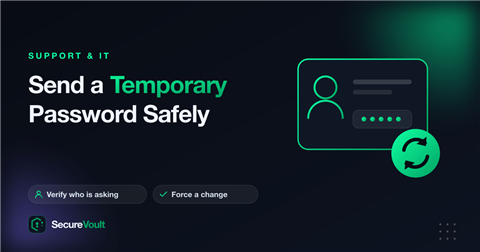
Password resets are some of the most common requests an IT or support team handles, and some of the easiest to get wrong. Two things can go badly: you hand a working login to the wrong person, or you leave that login sitting in a mailbox or chat for anyone to find. A short, repeatable process fixes both.
Step 1: confirm who is asking
Attackers often start with a friendly request to reset someone else’s password. Before you create anything, check that the person is who they say they are:
- Call back on a number you already hold, not one given in the request.
- Ask a manager or the account owner to confirm for staff who cannot be reached directly.
- Use a method agreed in advance, rather than questions whose answers are easy to find online.
- Be stricter for admin and finance accounts.
Step 2: make the temporary password safe to use
- Generate a random password. Never use a pattern such as the company name and a year.
- Require a change at first sign-in wherever the system supports it.
- Give it a short life, so it stops working if it is not used.
- Reset two-factor details only after identity is confirmed, and tell the user when you do.
Step 3: send it without leaving a copy
This is where many teams slip. A temporary password in an email or a chat is still a password, and it stays in that mailbox or channel long after it has been changed. Instead:
- Create a one-time link that shows the password once and then deletes it.
- Send the link through a channel the user already controls.
- For higher-risk accounts, add a passphrase and give it by phone.
- Pick a short expiry, such as one hour, and tell the user to open it right away.
Step 4: check that it worked
- Confirm the user has signed in and set a new password.
- If the link was never opened, treat it as unused, let it expire and start again.
- If it was opened by someone unexpected, change the password at once and look at recent sign-ins.
Step 5: record it, without the password
Note in the ticket that a reset was done, who verified identity, and when. Never paste the password itself into the ticket, so the record helps an audit without becoming a new risk.
Mistakes to avoid
- Resetting a password on the strength of an email alone.
- Reusing the same temporary password for every reset.
- Leaving it valid for days because the user is on leave.
- Sending the temporary password and the account username together in one message.
Frequently asked questions
Is it safe to email a temporary password?
It is better avoided. The email keeps a readable copy in mailboxes and backups. A one-time link shows the password once and then deletes it.
How long should a temporary password last?
As short as is practical. If the user will sign in within the hour, use a short expiry for the link and make the password itself expire soon after.
Should the user have to change it?
Yes. Require a new password at first sign-in so the temporary one is useless after that.
Do I need an account to send a link?
No. A one-off text secret does not need an account. Passphrases, view limits and longer expiry are available when you create secrets while signed in.
Send the reset without leaving a copy
A clean reset ends with nothing sensitive left in the thread. By default, SecureVoult shows a secret once and then deletes it, so a temporary password does not sit in email, chat or tickets.
Keep reading:
Share a secret now
Create a one-time, self-destructing link in seconds. No account needed.
Create a secret link