How to Share Social Media Logins with an Agency or Freelancer
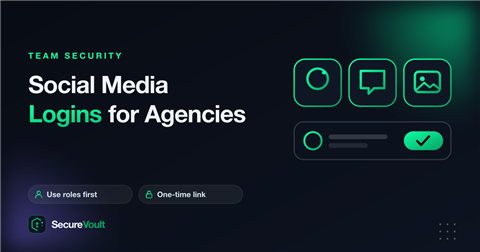
An agency or freelancer needs access to your social media accounts to post, reply and report. The quick way is to send the username and password in an email. The better way gives them just enough access, hands over any password safely, and takes the access back when the contract ends.
Why social accounts need extra care
A company page is public, so a hijacked login is public too. Someone with access can post as your brand, message your followers, change the recovery email or lock you out. Unlike an internal tool, the damage is visible to your customers within minutes.
Step 1: use roles instead of passwords when you can
Many platforms let you add a person to a page or account with their own login and a limited role, instead of sharing the owner’s credentials. Check the account settings for options such as team members, page roles, business manager access or delegated access. The benefits are real:
- The agency uses its own login, so you never hand over your password.
- You can limit what they can do, for example post but not change billing or ownership.
- You can remove one person without changing anything else.
The exact names and options differ between platforms and change over time, so look at what each account offers.
Step 2: if you must share a password, do it safely
- Create the login for them as a separate user or a dedicated account where the platform allows it, not your personal one.
- Send the password as a one-time link that shows it once and then deletes it, not in an email, chat or shared document.
- Add a passphrase and give it to them by a different channel, such as a phone call.
- Choose a short expiry, so the link does not wait in an inbox for days.
- Ask them to change the password straight after they sign in, and to store it in their own password manager.
Step 3: handle two-factor codes
Social accounts often ask for a one-time code. Do not share the code generator from your personal phone. Where possible, use the platform’s own method for adding another person, or register the agency’s own device or authenticator for the account. If a code is needed once during setup, share it live on a call rather than leaving it in writing.
Step 4: agree the ground rules in writing
- Who owns the accounts and the recovery email address.
- Which accounts and roles the agency gets, and what they should not change.
- That passwords will not be passed on to subcontractors without asking you.
- When access will end, and who confirms it.
Step 5: end access cleanly
- Remove the agency’s roles and invitations on each platform.
- Change any password they were given, and review the recovery email and phone number.
- Check connected apps and scheduling tools for access that should end.
- Sign out of other sessions where the platform offers it.
- Keep a short list of who had access, and when it was removed.
Mistakes to avoid
- Using your personal login as the shared one.
- Putting the username, password and two-factor code in one message.
- Never changing the password after the agency leaves.
- Having the agency own the account, the email or the domain behind it.
Frequently asked questions
Is it safe to give an agency my social media password?
It is safer to give them their own limited access. If you must share a password, send it as a one-time link, add a passphrase through another channel, and change it when the work ends.
Should I share the password in a message?
Avoid it. Messages stay in inboxes and chat history for years. A one-time link shows the password once and then deletes it.
What if the freelancer needs a verification code?
Prefer adding their own device or login. If a code is needed once, share it on a live call instead of writing it down.
Do I need an account to send a link?
No. A one-off text secret does not need an account. Passphrases, view limits and longer expiry are available when you create secrets while signed in.
Hand over access without leaving a copy
When a password really has to change hands, send it through a link that disappears. By default, SecureVoult shows a secret once and then deletes it, so nothing is left behind in email or chat.
Keep reading:
Share a secret now
Create a one-time, self-destructing link in seconds. No account needed.
Create a secret link