When Should You Rotate Shared Passwords?
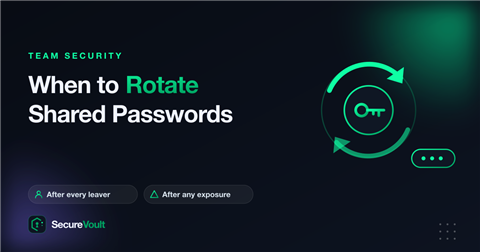
Shared passwords are the ones most likely to outlive the reason they were shared. A contractor finishes, a teammate moves on, a message with the login sits in a chat for a year. The question is not only how often to change them, but what should trigger a change.
Event-based beats calendar-based
Forcing everyone to change every password every 90 days tends to produce weaker choices, such as adding a number to the old one. Current guidance, including NIST’s password guidelines, advises against forced periodic changes for ordinary passwords and recommends changing a password when there is evidence it may be compromised. For shared credentials the same logic applies, with one addition: the people who know the password change over time, and that is an event too.
Change it right away when
- Someone who knew it leaves the team or the company.
- A contractor or agency finishes the work they were given access for.
- It was shared somewhere it should not have been, such as a public channel, an email thread or a ticket.
- You suspect misuse: an unfamiliar login, an unexpected change or an alert from the service.
- A device that stored it is lost or compromised.
- It was committed to code or pasted into a document that many people can open.
Add a schedule for high-value logins
Some accounts justify a calendar reminder as well, because a missed event is easy to overlook:
- Admin consoles, billing and domain registrar accounts.
- Production databases, servers and cloud root accounts.
- API keys and tokens with write access.
- Any login that several people have used for a long time.
Pick an interval you will actually keep, for example every six or twelve months, and write it down next to the account’s owner. A schedule you ignore is worse than none, because it gives a false sense of safety.
How to rotate without breaking things
- List where the credential is used: apps, scripts, integrations and people.
- Create the new password or key and keep the old one working for a short overlap where the service allows it.
- Update each place that uses it, starting with automated systems.
- Send the new credential to the people who need it as a one-time link, not in chat or email.
- Revoke the old one and watch for failures.
- Note the date and the owner, so the next change is easy.
Make rotation cheaper
- Give every shared login a named owner who is responsible for changing it.
- Prefer individual accounts or roles over one password for everyone, so one leaver does not force a change for the whole team.
- Keep a simple list of what is shared, with whom and since when.
- Store credentials in your password manager and use links only for the handover.
Mistakes to avoid
- Changing the password but leaving it in the old messages, which still hold the previous version.
- Rotating on paper but never updating the integration that uses it.
- Skipping rotation after a leaver because the person left on good terms.
- Sending the new password in the same place that leaked the old one.
Frequently asked questions
How often should shared passwords be changed?
Change them when something happens, such as a leaver, a contractor finishing or an exposure. For high-value accounts, add a schedule you will keep, such as every six to twelve months.
Is a 90-day password change rule a good idea?
Fixed forced changes often lead to weaker, predictable passwords. Event-based changes, plus a schedule for critical accounts, are more practical.
Do I need to rotate when a trusted employee leaves?
Yes. It is about who still knows the password, not about trust. Change anything they had access to.
How do I send the new password to the team?
Use a one-time link that shows the password once and then deletes it. A one-off text secret does not need an account, and signed-in plans add view limits, passphrases and longer expiry.
Send the new credential without leaving a copy
Rotation only works if the new password does not end up in the same chat history as the old one. By default, SecureVoult shows a secret once and then deletes it, so nothing is left behind in email, chat or tickets.
Keep reading:
Share a secret now
Create a one-time, self-destructing link in seconds. No account needed.
Create a secret link